Getting up and running with the Claude desktop app
Table of Contents
Introduction
I use Claude for 99% of my research and general questions these days and it's become incredibly useful to me. This is a guide that covers:
- how to install the Claude desktop app on an Apple computer
- how to create a Claude account using your existing Google account
- how to enter a prompt
- tips on how to write prompts
- tips on how to use the Claude desktop app
Prerequisites
This guide requires you to have:
- an Apple computer running macOS (ideally the latest version)
- a Google account (ideally you are logged in to said Google account in your browser)
- a web browser (ideally Google Chrome)
- 10-20 minutes of available time (depending on how tech savvy you are)
While Claude is an incredibly useful tool, there are some important things to keep in mind:
- Never share sensitive personal information such as Social Security numbers, bank account numbers, credit card numbers, passwords, or medical record numbers. Claude does not need this information to help you and sharing it creates unnecessary risk.
- Be cautious with private details. Avoid sharing your home address, phone number, or other identifying information unless absolutely necessary for the task at hand.
- Claude can be wrong. AI models are not perfect. They can produce inaccurate, outdated, or misleading information. Always verify important facts, especially for medical, legal, or financial decisions, with qualified professionals and trusted sources.
- Claude is not a substitute for professional advice. Do not rely on Claude for medical diagnoses, legal counsel, financial planning, or other areas where professional expertise is required.
- Be mindful of what you upload. If you share files or images with Claude, make sure they don't contain sensitive information you wouldn't want processed by a third-party service.
- Review Anthropic's privacy policy. To understand how your data is handled, review Anthropic's privacy policy and terms of service.
Instructions
Step 1: Download the Desktop app from claude.ai
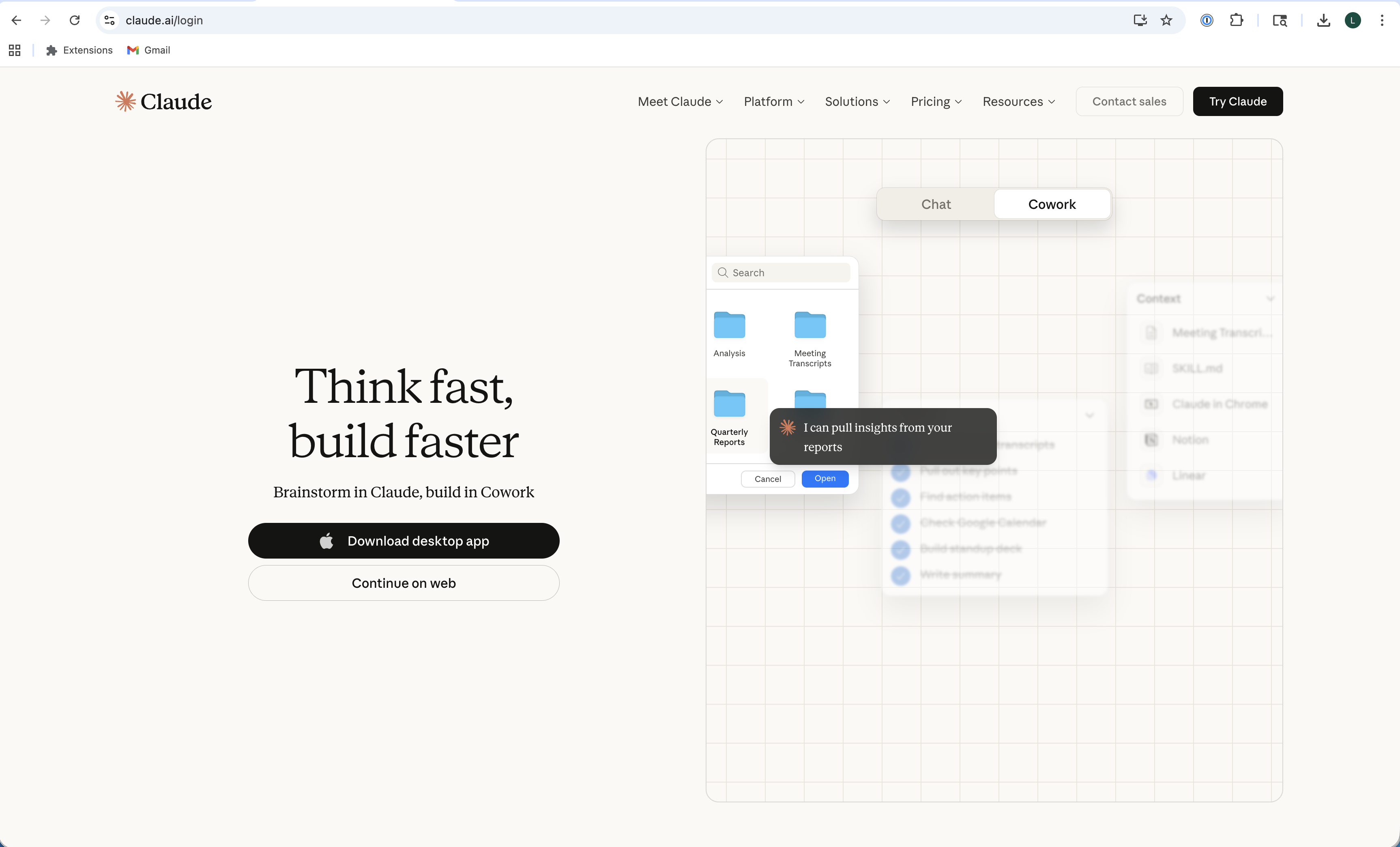
Go to claude.ai/login. You can either download the Desktop app or continue on web. I recommend downloading the Desktop app.
Click the "Download desktop app" button
Step 2: Open the installer
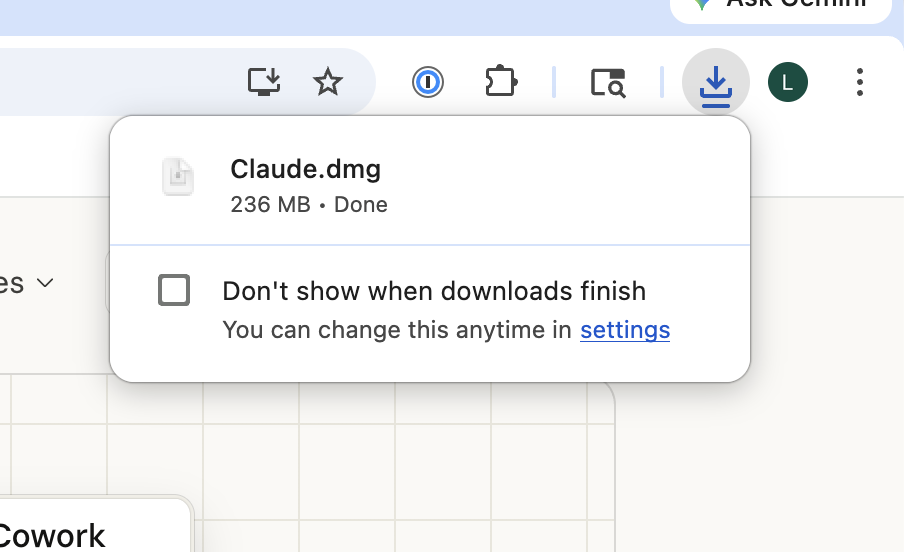
You're then going to install the Desktop app like you would any other app. The Claude.dmg install program will likely be saved in your Downloads folder or on your Desktop. It might even appear in the upper right of Chrome where you can double click it to open it.
Find where the downloaded Claude.dmg file was saved and double-click it to open it
Step 3: Drag Claude to Applications
Once you find the Claude.dmg installer program, double click on it and you should see a Finder window pop up that looks like this:
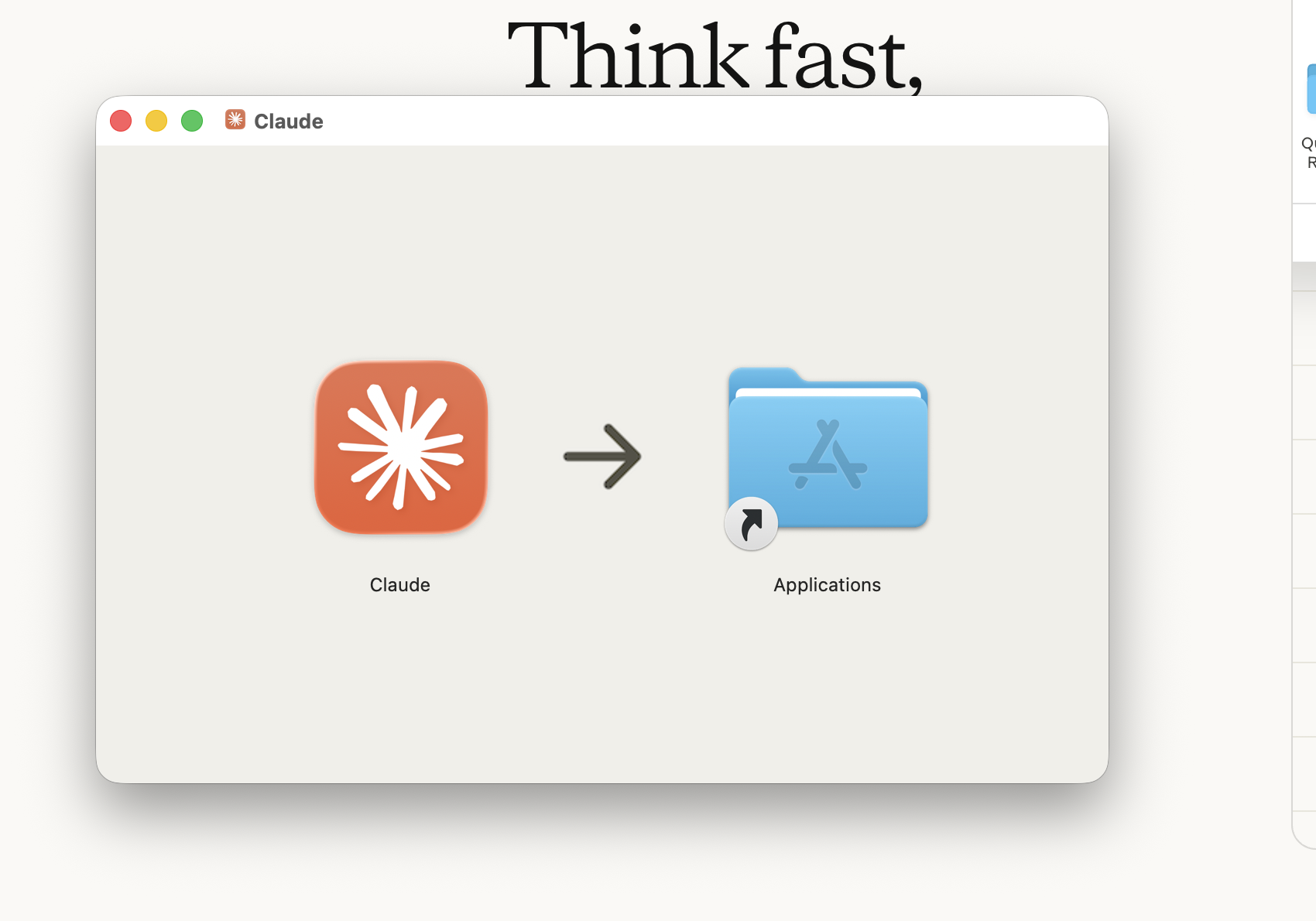
Click and drag the Claude program into your Applications folder. It will take 30-60 seconds to add it to your Applications. You can then close that window.
Step 4: Eject Claude installer (optional but recommended)
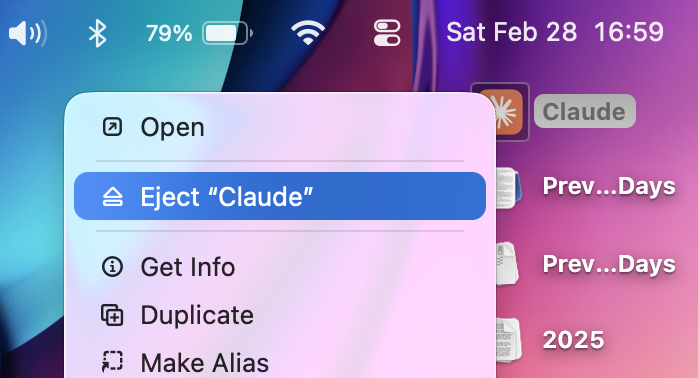
Eject the installer application from your Desktop by right clicking on it with your mouse (or two finger tap/click with trackpad or "control" + click) and selecting "Eject Claude" or by dragging it to the Trash in the Dock.
Step 5: Open Claude from Applications
You now have Claude installed as an application on your computer. Go into Applications using a Finder window, scroll to Claude and double click on it to open it.
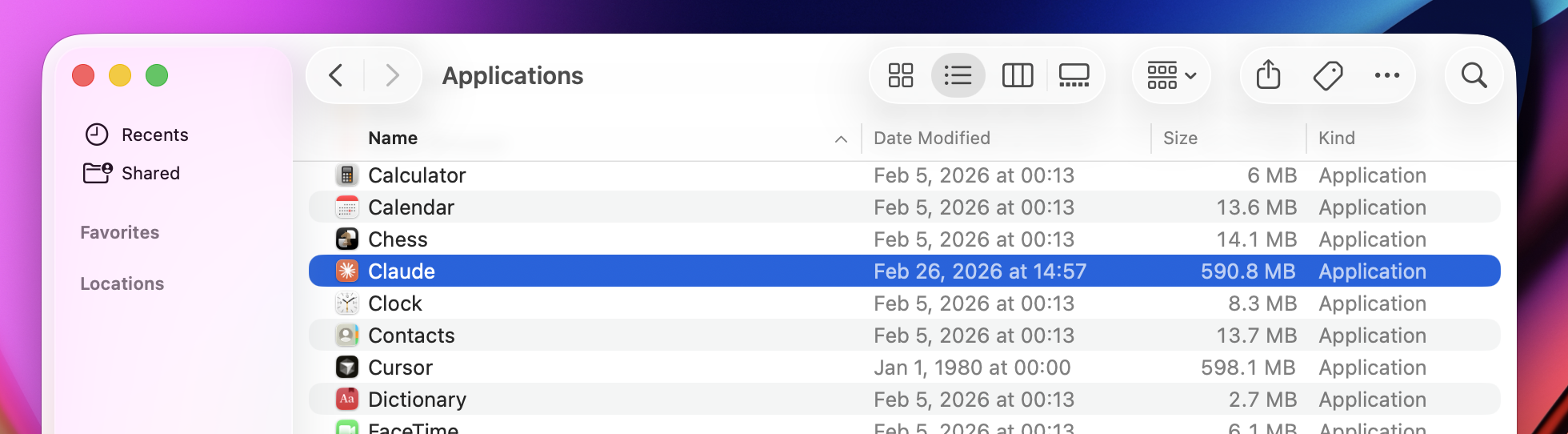
You can also use macOS Spotlight to open apps (and much more). To search with Spotlight, press Command + Space which will open a Spotlight search input. Type in "Claude" and then press enter once it shows up.
Step 6: Allow Claude to open
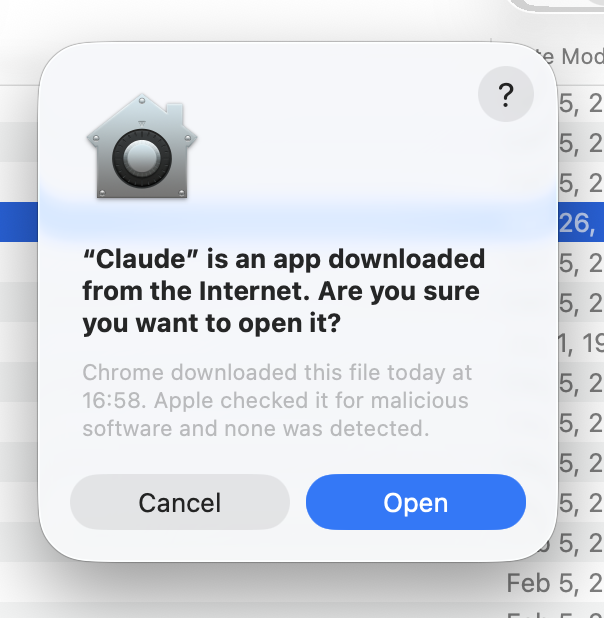
You will likely see a popup like the one below. This is safe. This program will not have control of your computer. The only thing Claude will have access to is the information you put into it unless you manually give it access to other applications.
Click "Open"
Step 7: Get Started
You're then going to see the Get Started window.
Click "Get Started"

Step 8: Sign in with Google
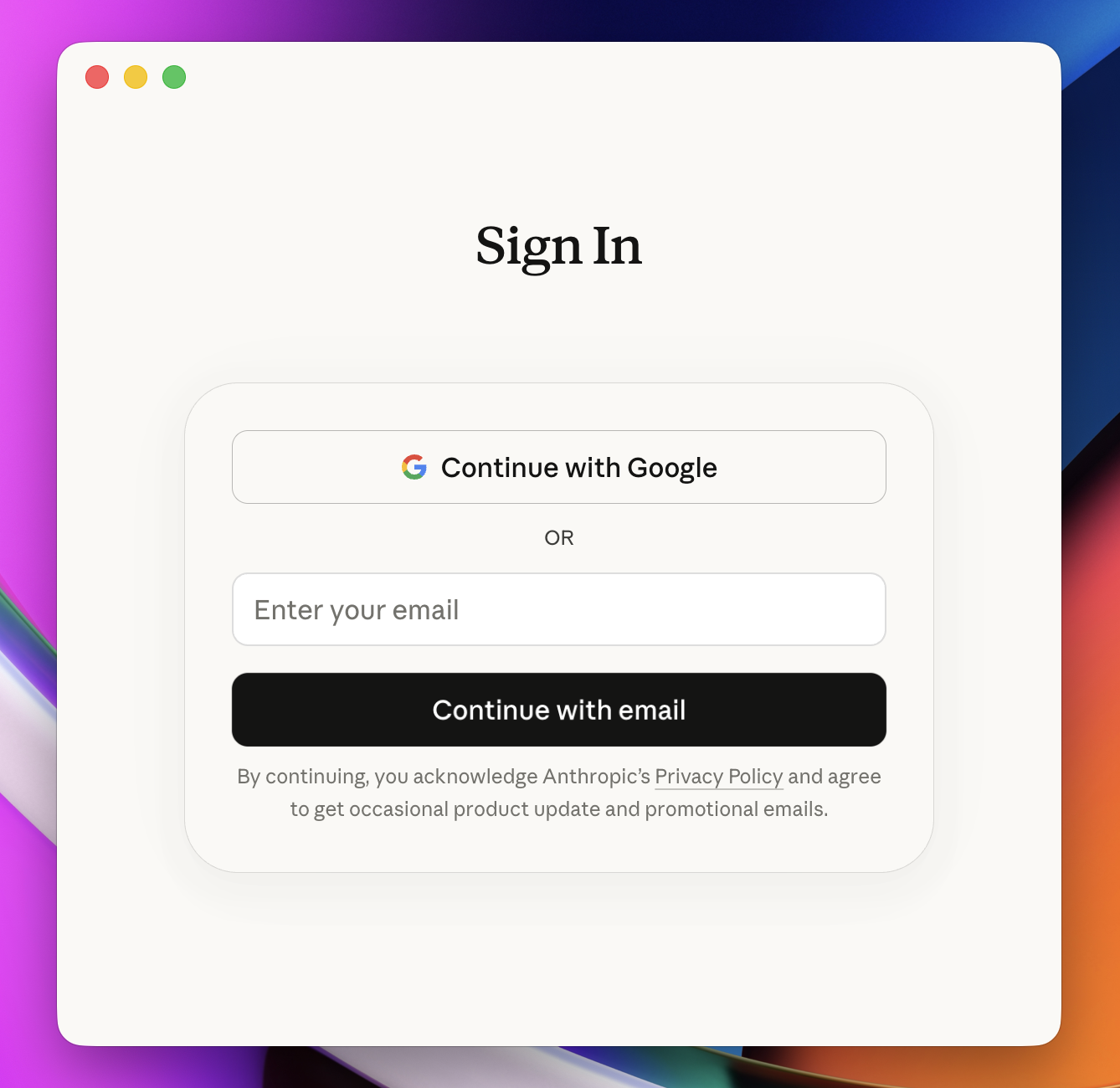
From there you're going to be prompted to sign in. I recommend using Google. Google sign-in is one of the most secure authentication methods and prevents having to create new passwords.
Click "Continue with Google"
Step 9: Continue with Google in Chrome
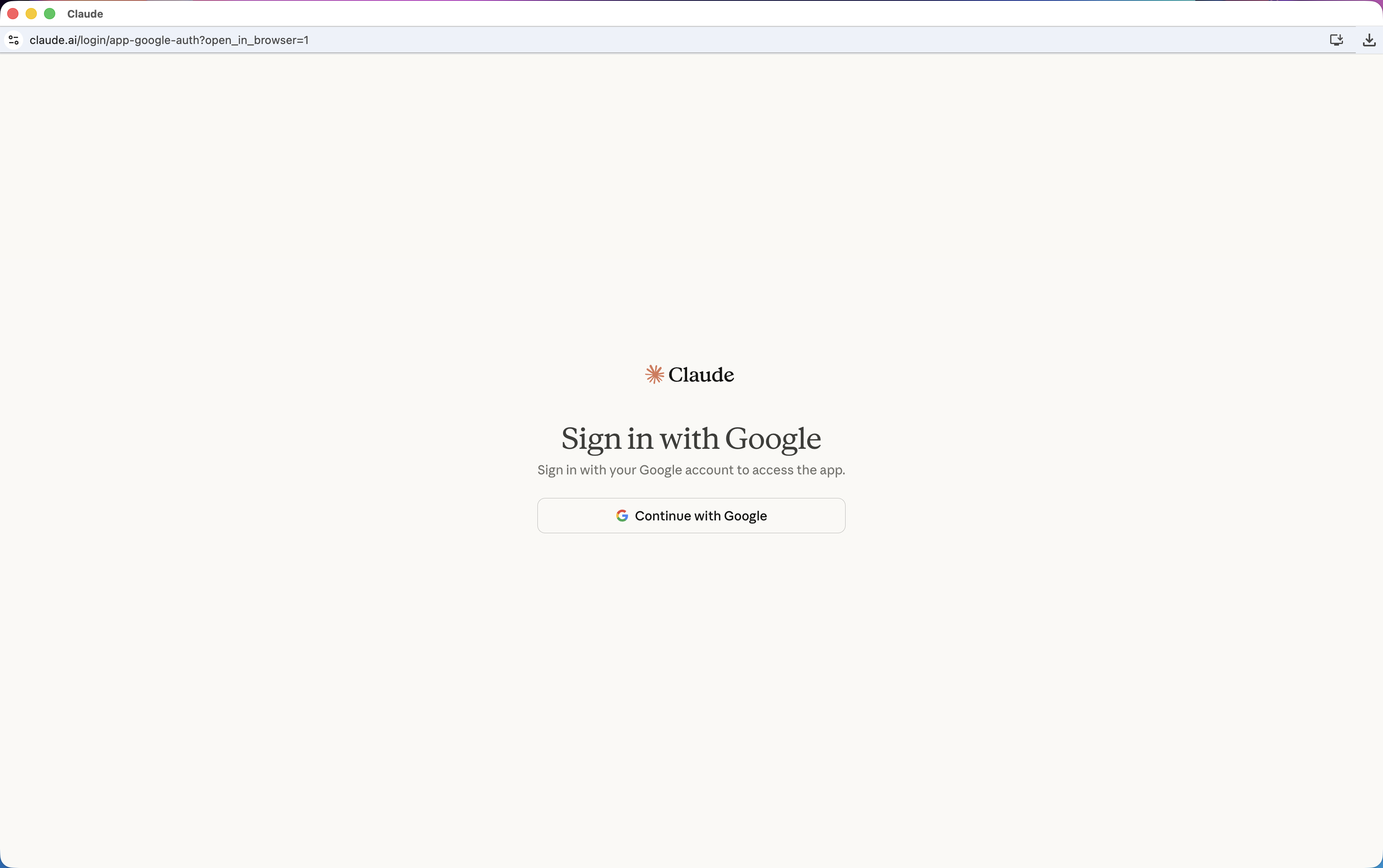
A new Chrome window will open that looks like the one below.
Click "Continue with Google"
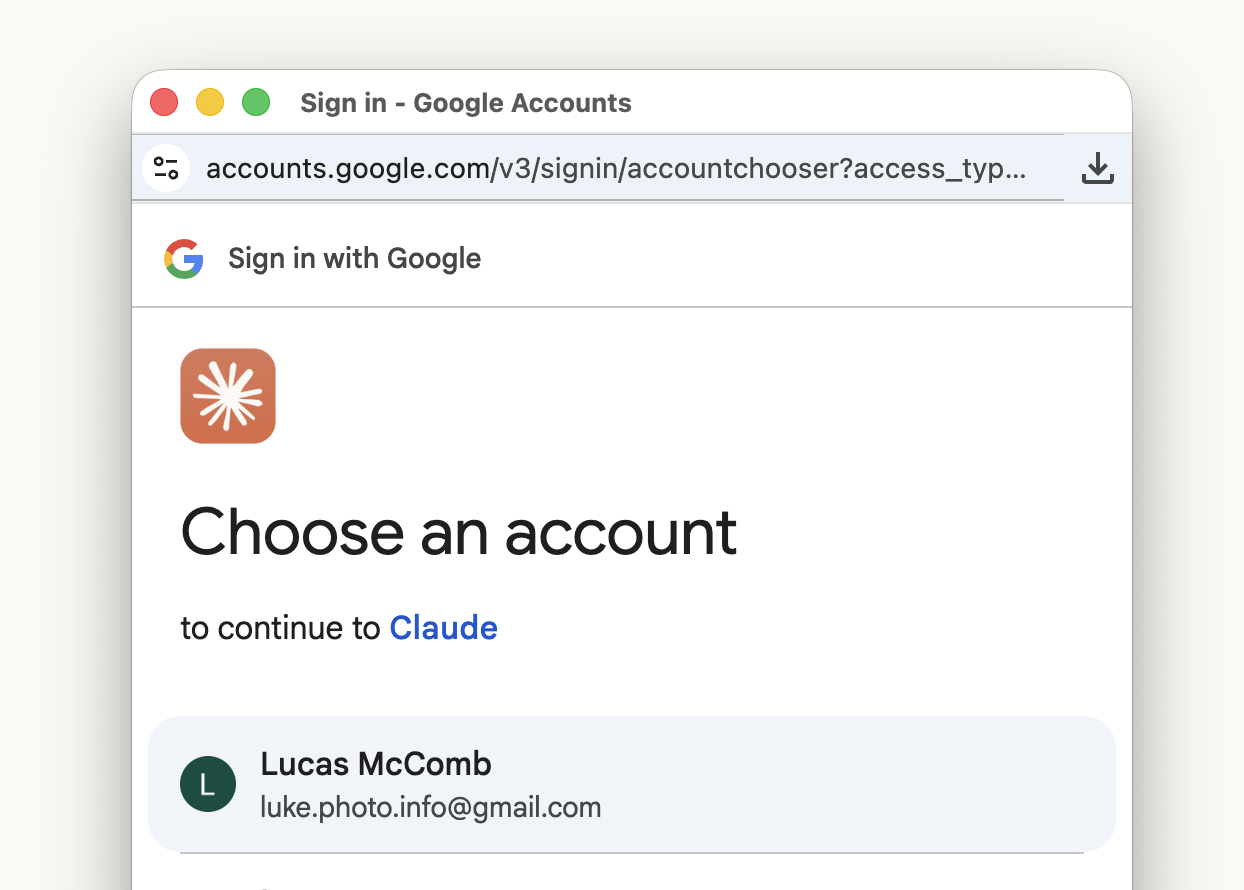
Step 10: Select your Google account
Another Google Authentication window will appear that looks like the one below.
Select the account you want to sign in with
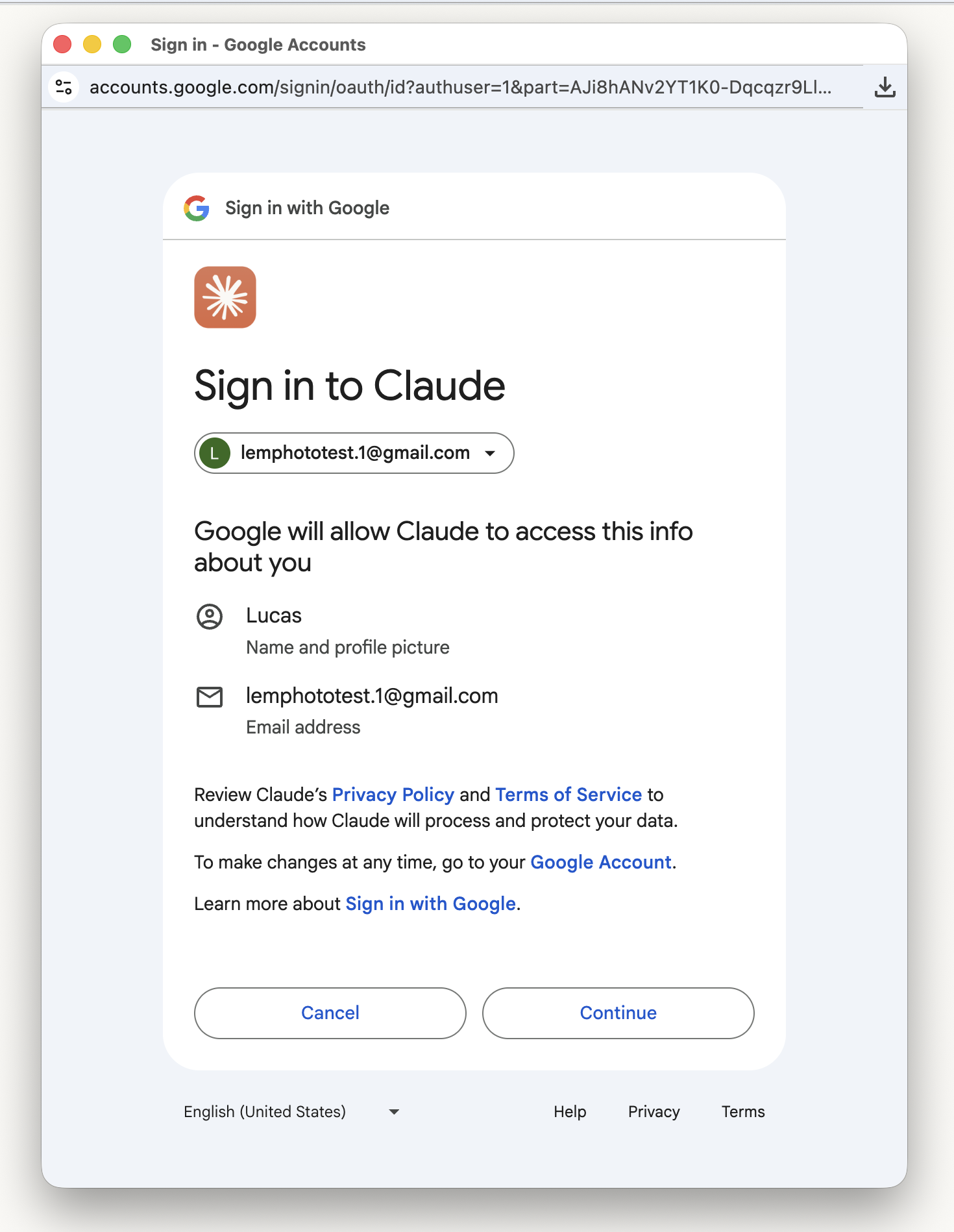
Step 11: Authorize Claude
You'll then see a "Sign in to Claude" window appear. Again, this is safe. You're only giving Claude access to your basic Google profile information, not your emails, contacts, or any of your private data. This is simply using your Google account to authenticate for login and it is safe.
Click "Continue"
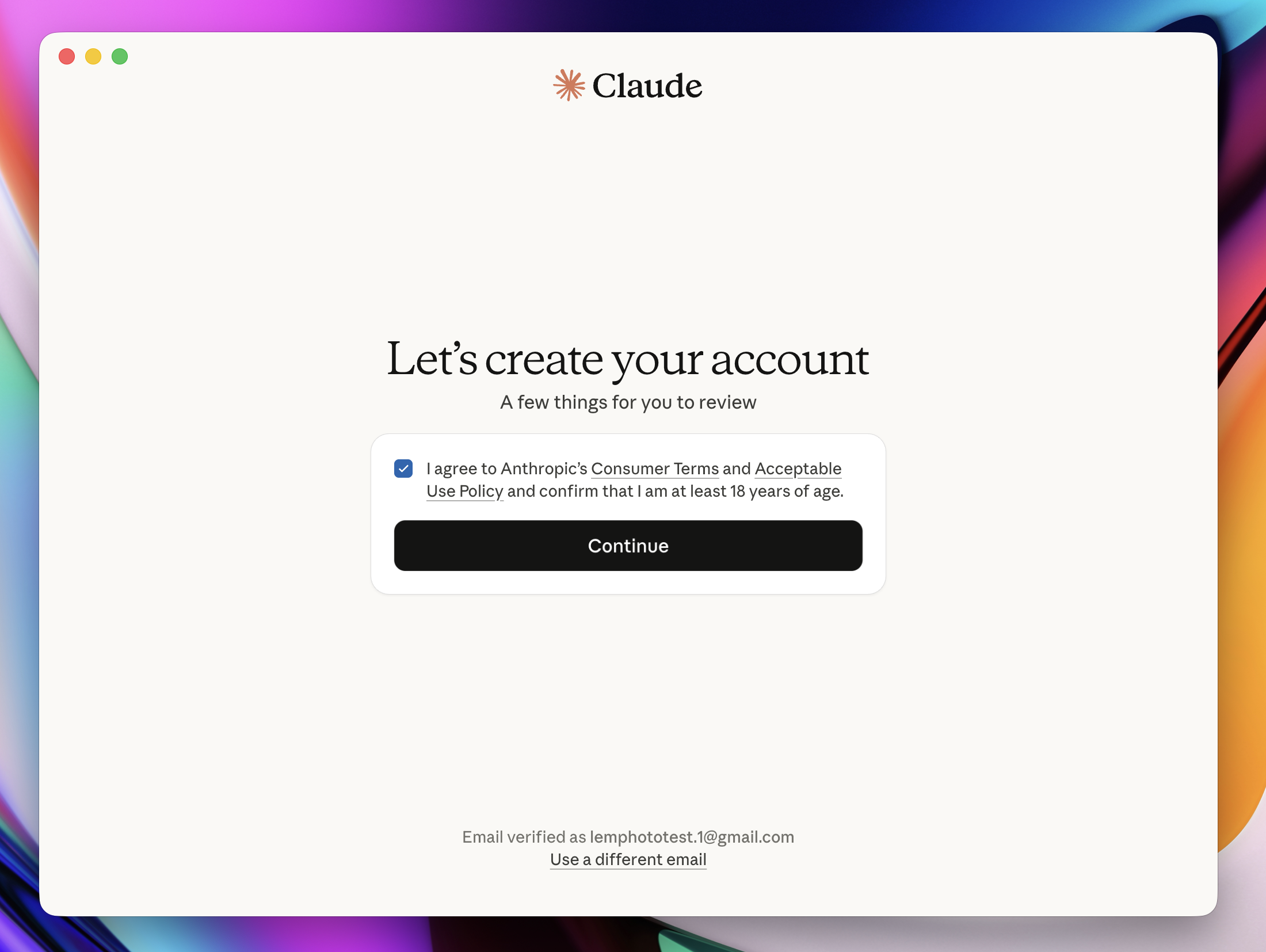
Step 12: Accept the terms
You'll then be returned to the Claude desktop app interface where you'll see the following screen.
Check the "I agree..." checkbox and click "Continue"
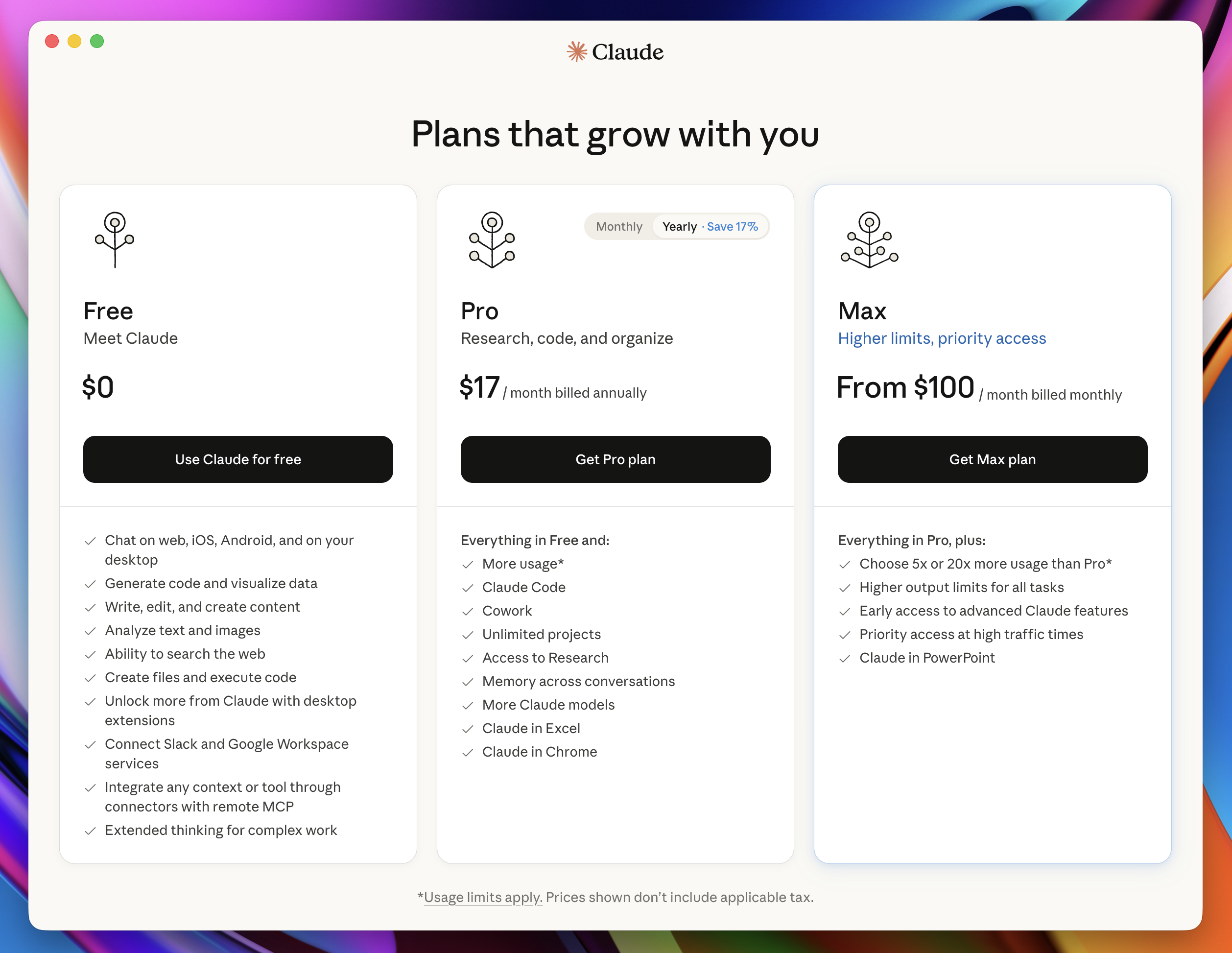
Step 13: Choose a plan
You'll then see the "Choose a plan" screen appear. I recommend starting with a Free plan and if you end up wanting more features you can always upgrade.
Click "Use Claude for free"
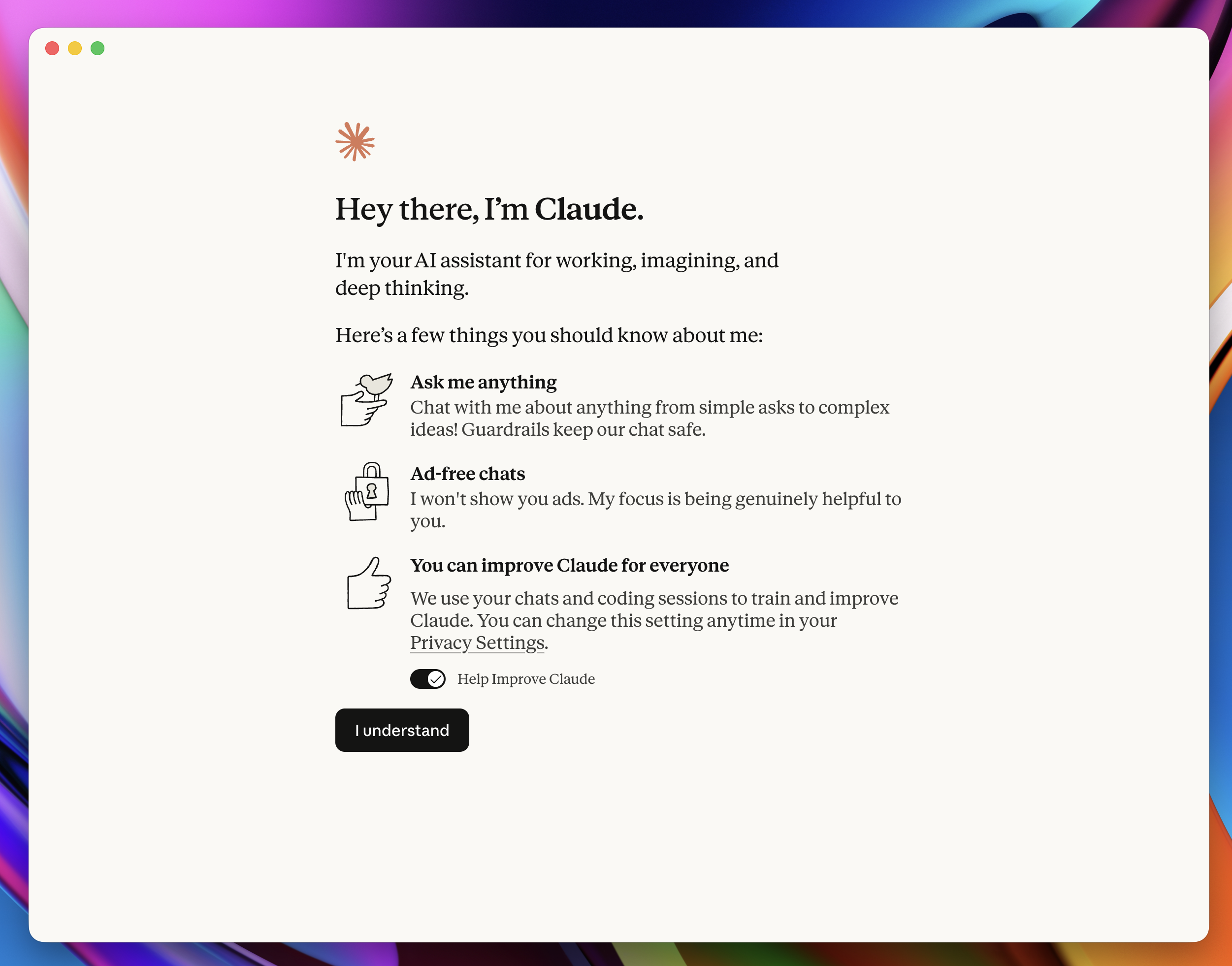
Step 14: Welcome screen
You'll then see a welcome screen explaining a few things.
Toggle "Help Improve Claude" off at the bottom Click "I understand"

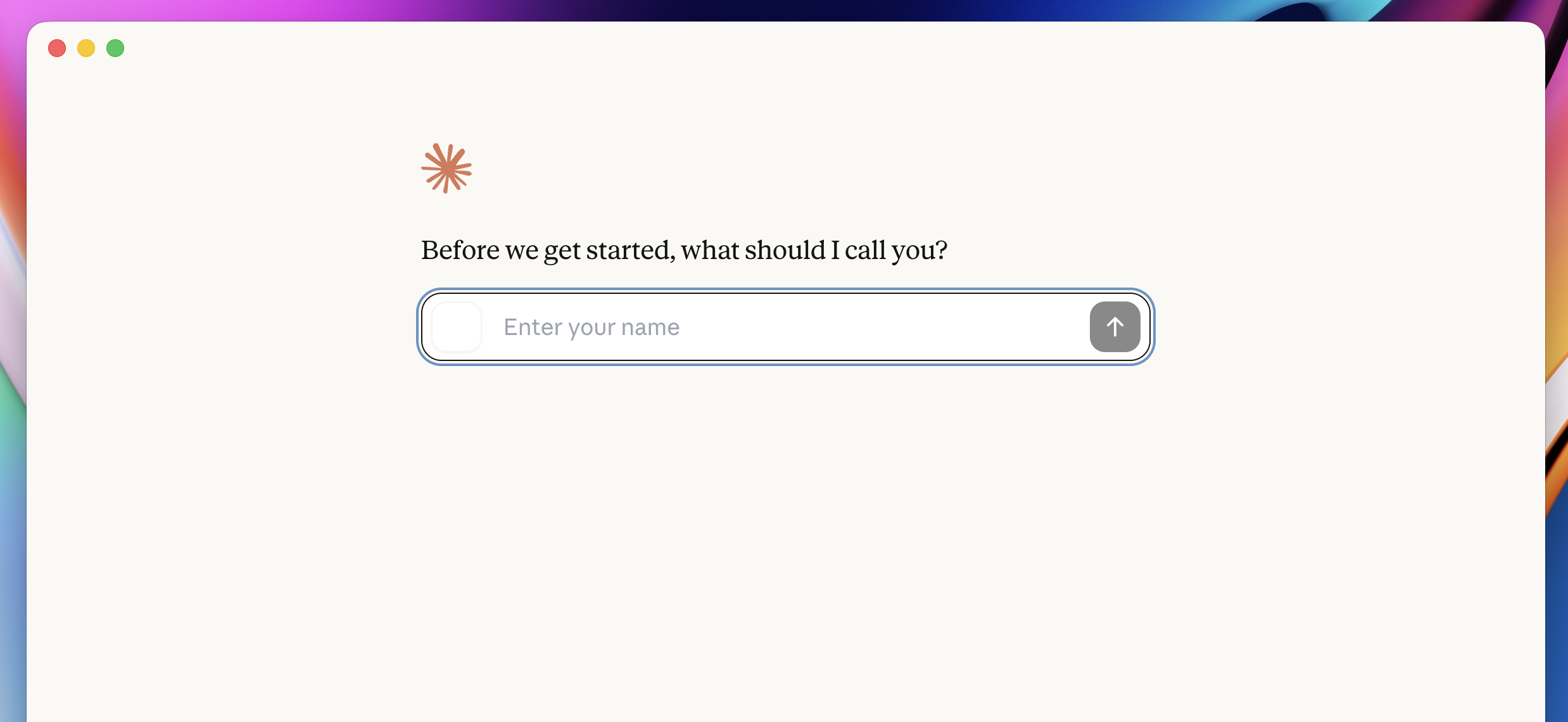
Step 15: Enter your name
Enter your name in the following screen.
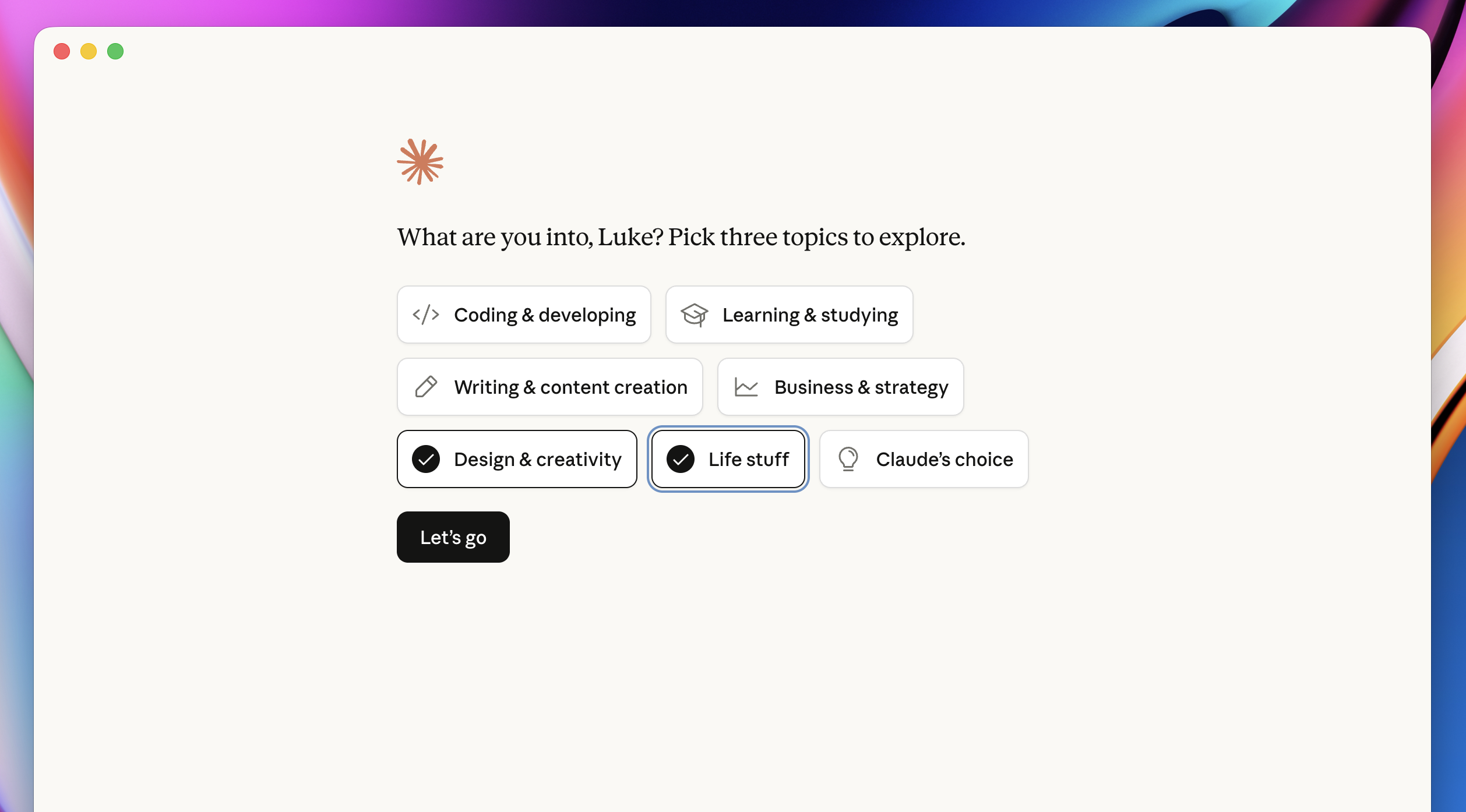
Step 16: Select your interests
On the "What are you into?" screen select which options that you think fit your needs most. For you, I would recommend: Life stuff and Design & creativity.
Once you have the options selected, click "Let's go"
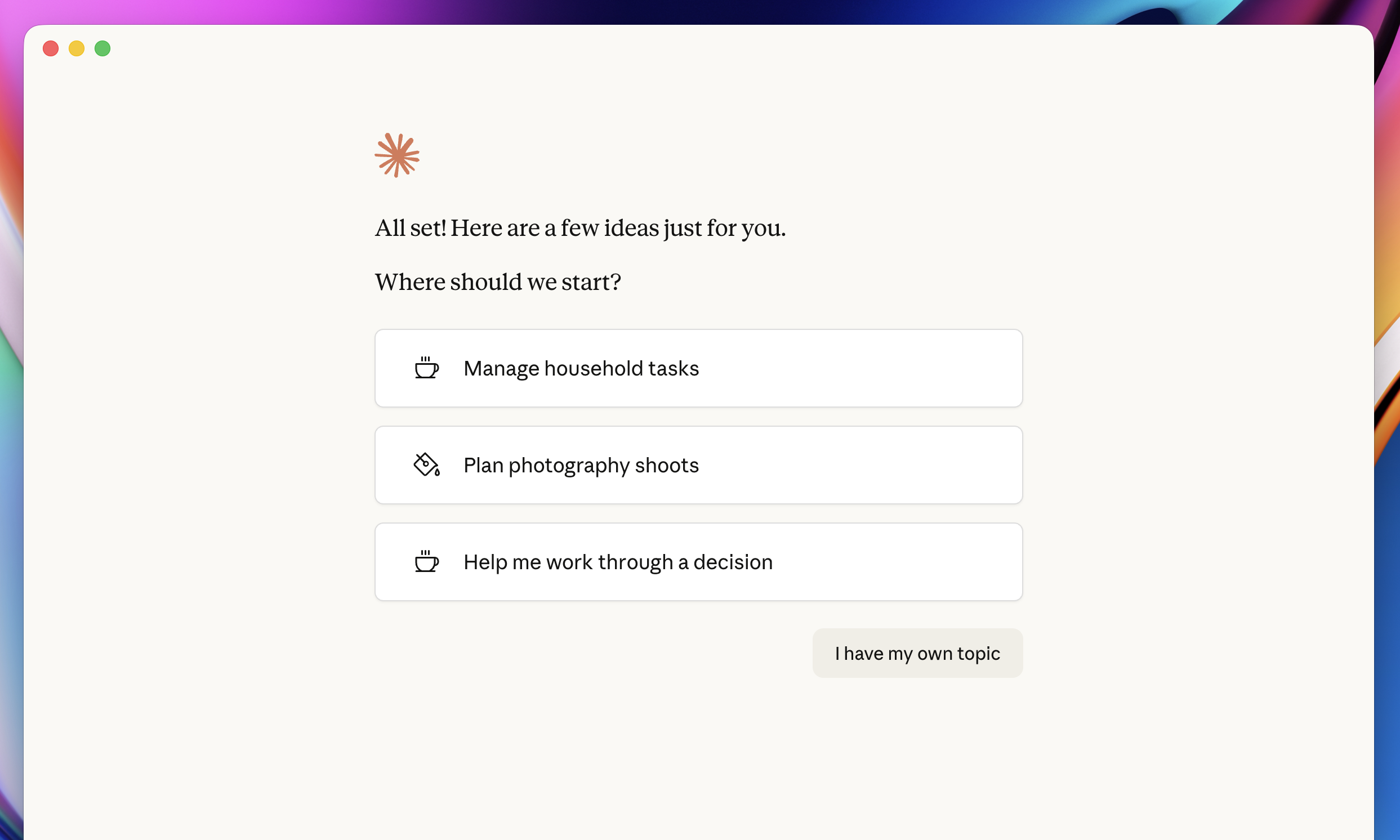
Step 17: Start your first conversation
You'll then see a "Where should we start?" screen.
Click "I have my own topic" on the bottom right
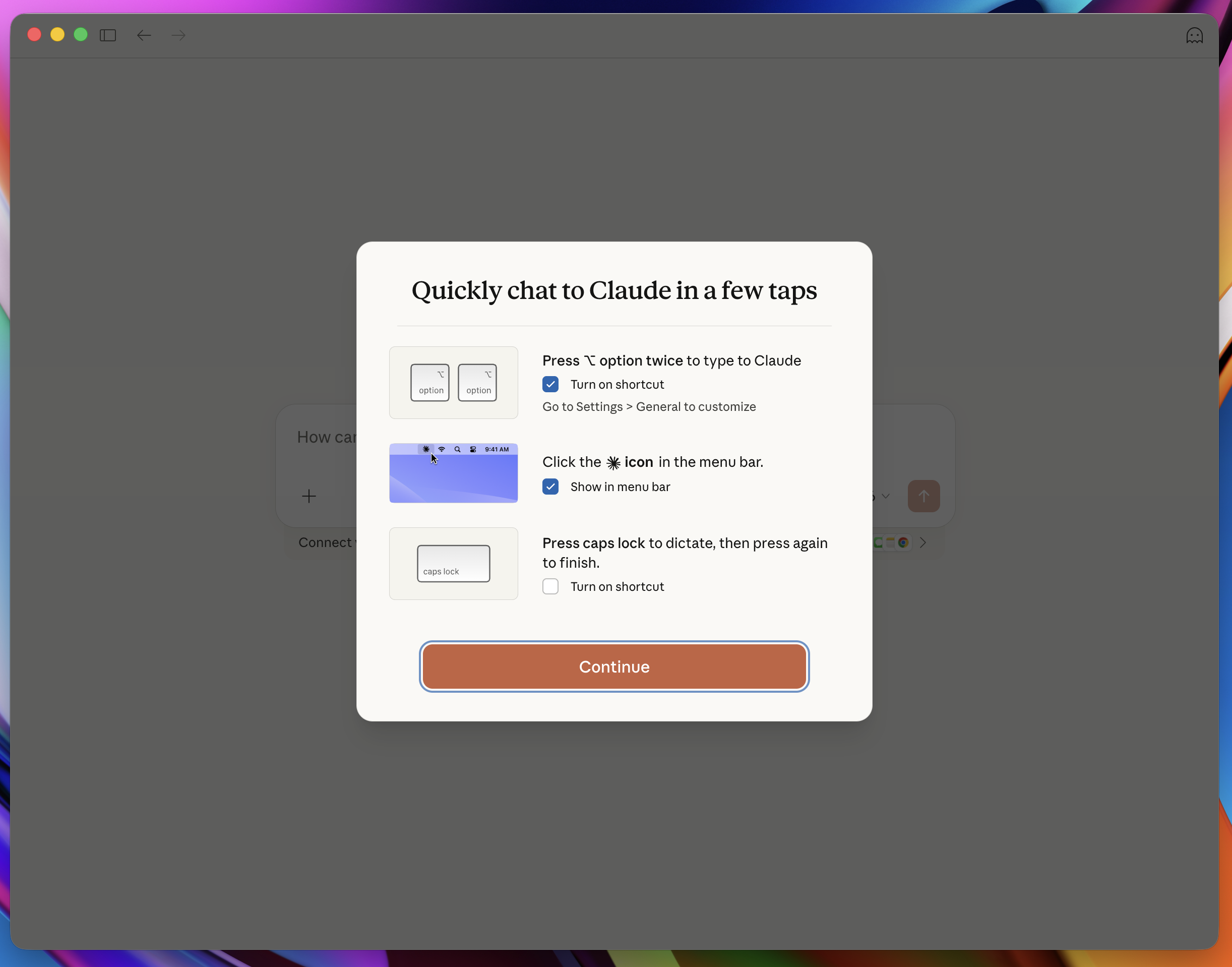
Step 18: Select Quick Chat options
I would keep the two default options in this screen selected. I use the menu bar shortcut often and am working on getting used to the double-option shortcut.
Select the options you want to use and click "Continue"
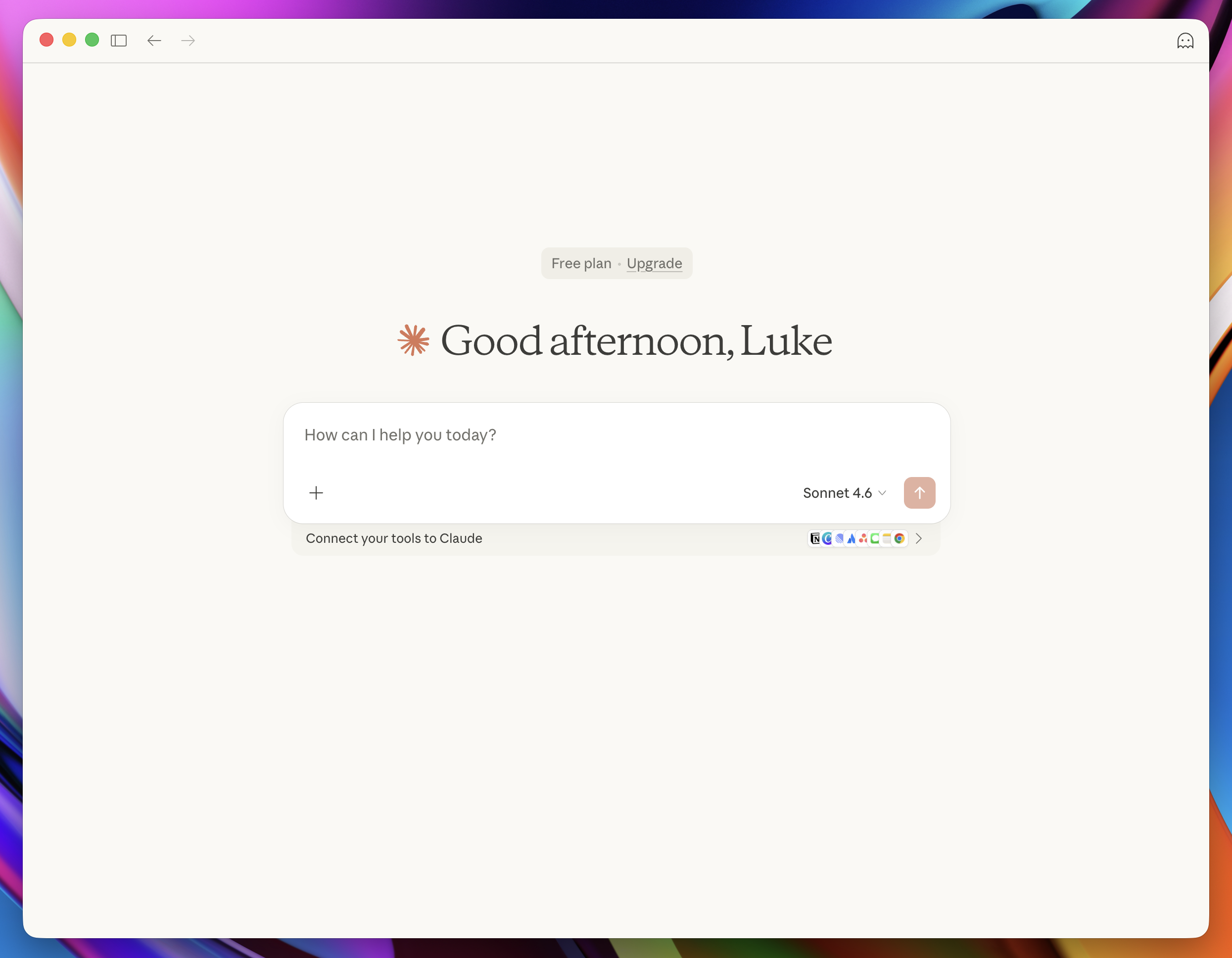
Step 19: Start your first chat with Claude!
We've reached the finish line for getting up and running with Claude as a desktop app. Ask Claude about whatever is on your mind. I use Claude for all of my questions, research, guidance, advice and even just processing my thoughts.
If you're not sure the best ways to use Claude, ask Claude. AI agents like Claude are the most powerful tools that humans have created for the purpose of acquiring general knowledge. It has access to almost all of documented human knowledge and it can explain things for any level of understanding. Ask it anything!
Here's an example use case that might be helpful. A family member of mine recently messaged me with the following question:
I have a bunch of family photos that I want to digitize. They're all in different print sizes up to 11x14. I'm thinking about ordering a scanner but not sure which one to get. I also don't know what the best way to digitally store the scanned photos would be. Would you be able to recommend a good scanner that can do batch scanning for lots of photos and what the best storage option would be? I have an iCloud account that I backup my iPhone photos to and have also used Google Photos. Batch upload would be helpful. I also want to be able to create photo books with the digitized images.
Here's exactly what I would do to answer that question:
- Open Claude
- Copy the text of that message and paste it into the Claude prompt
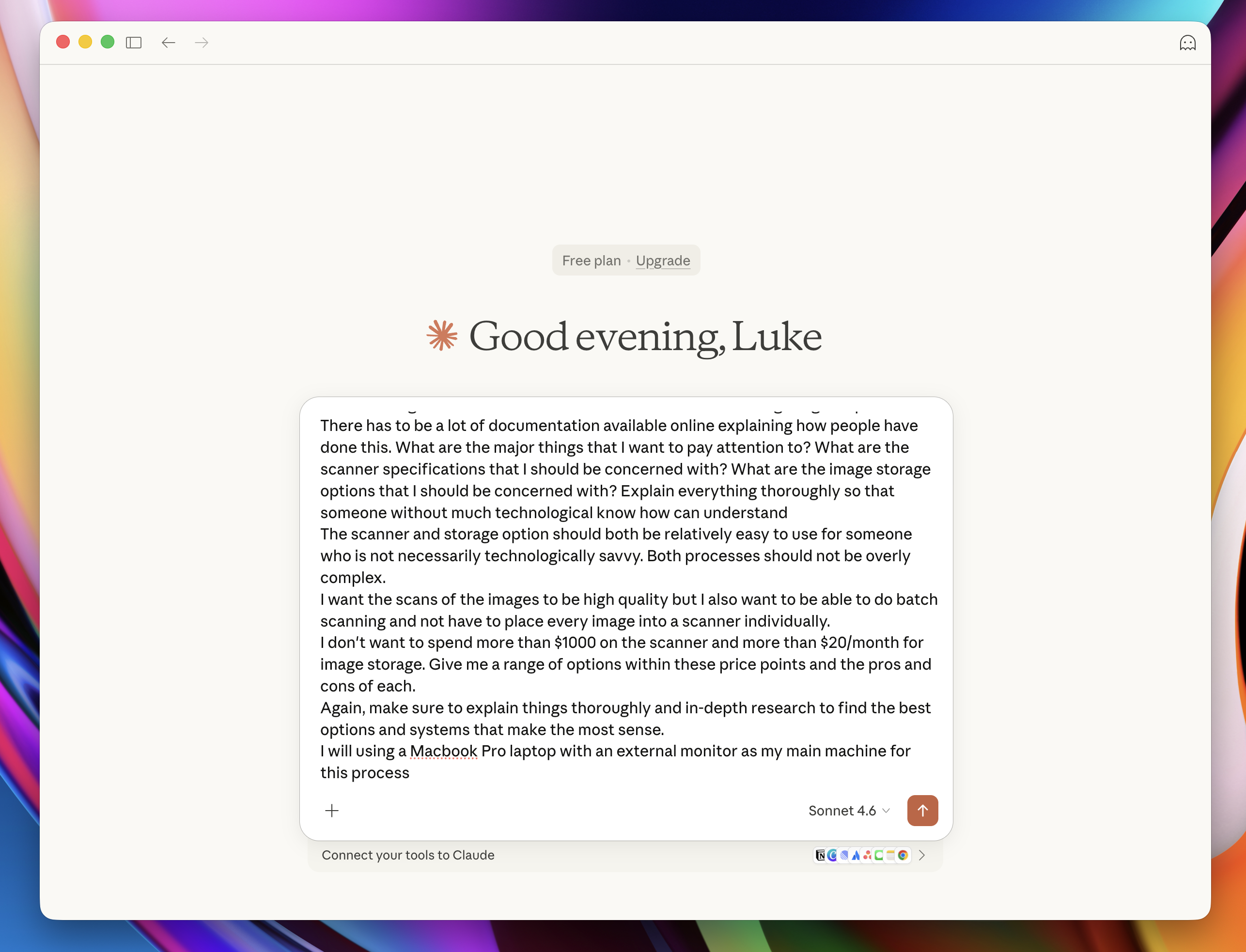
- Add a couple notes to the end of the prompt that I think would be helpful:
- "Give me a high level overview of how I should think about configuring this process. There has to be a lot of documentation available online explaining how people have done this. What are the major things that I want to pay attention to? What are the scanner specifications that I should be concerned with? What are the image storage options that I should be concerned with? Explain everything thoroughly so that someone without much technological know-how can understand."
- "The scanner and storage option should both be relatively easy to use for someone who is not necessarily technologically savvy. Both processes should not be overly complex."
- "I want the scans of the images to be high quality but I also want to be able to do batch scanning and not have to place every image into a scanner individually."
- "I don't want to spend more than $1000 on the scanner and more than $20/month for image storage. Give me a range of options within these price points and the pros and cons of each."
- "Again, make sure to explain things thoroughly and do in-depth research to find the best options and systems that make the most sense."
- "I will be using a MacBook Pro laptop with an external monitor as my main machine for this process."
When I'm writing prompts into AI agents I try to write as clearly as possible and identify key areas that I want the agent to research and think about. I ask the agent to explain things to me in plain terms. If I don't know anything about something that I'm researching I start from that point of view and ask the agent to explain things to me from a high level, break down the main concepts so that I can understand them and use that foundation to guide my thinking and the path of the conversation. If you don't understand something that Claude told you, ask Claude to explain it in simpler terms ("Explain this to me like I'm 10 years old"). Curiosity is your friend here. Claude will not judge you for not knowing something. Claude's purpose is to help you figure anything out. Use it!
Once you've finished entering the prompt into the text area, hit the return key or press the arrow button on the right side of the text area. Claude will begin researching.
Step 20: Utilizing Claude's output
After entering that prompt regarding photo print digitizing, Claude spent about 3 minutes researching options for scanners and photo storage and then created a .docx document for me with all of the information.
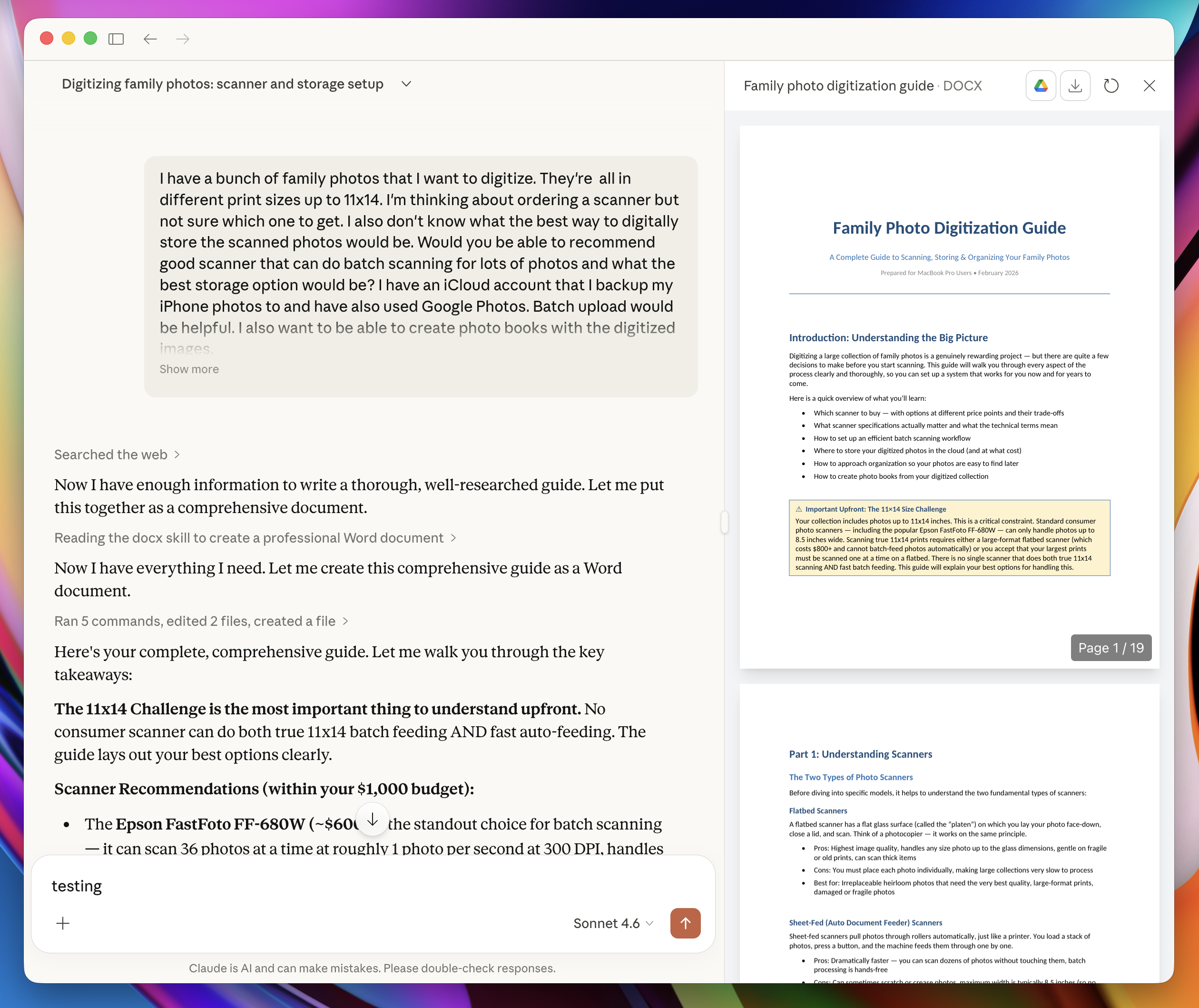
I can now download that file or add it to my Google Drive to share it using the buttons in the upper right corner of the window.
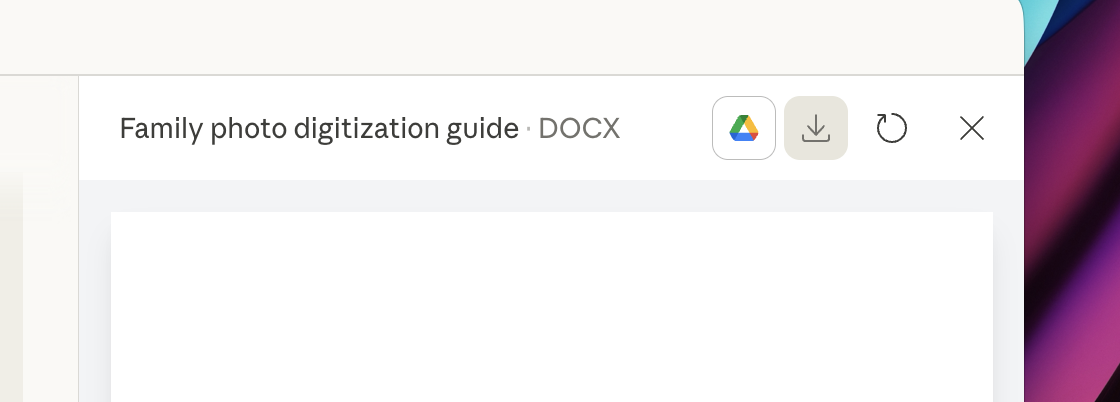
Here's the document that Claude created for me: Family Photo Digitization Guide
Let's say that I review the document and want Claude to explain something more or I want to clarify a feature that I want the scanner to have or I realized a constraint with the scanning process that I forgot to mention in the original prompt. I would simply type into the prompt:
I realized I forgot to mention X, does that change your recommendation at all?
Tips
- Use "Return + Shift" to add a line break in the prompt area without sending the prompt.
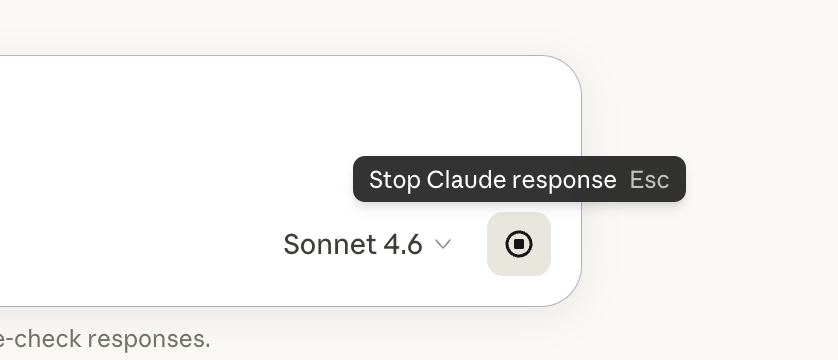
- If you accidentally sent a prompt and want to stop Claude from answering it, hit the stop button in the bottom right of the prompt area or hit the "Esc" key.
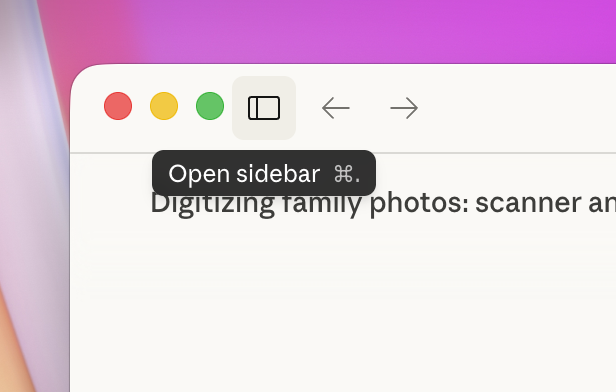
- Click the "Open sidebar" button at the top left of the screen to view your recent chats, create a new chat or use other features of Claude.
- Quickly create a new chat by pressing "Command + Shift + O".
- If you upgrade to a paid plan, you can use better models for more complex tasks. Unless you're asking Claude to process complex data or research a very complex process of some kind, the latest model that's provided with the Free plan should be sufficient for your needs. If you find that it's not performing to your desired ability I would try upgrading to see if that improves Claude's responses.
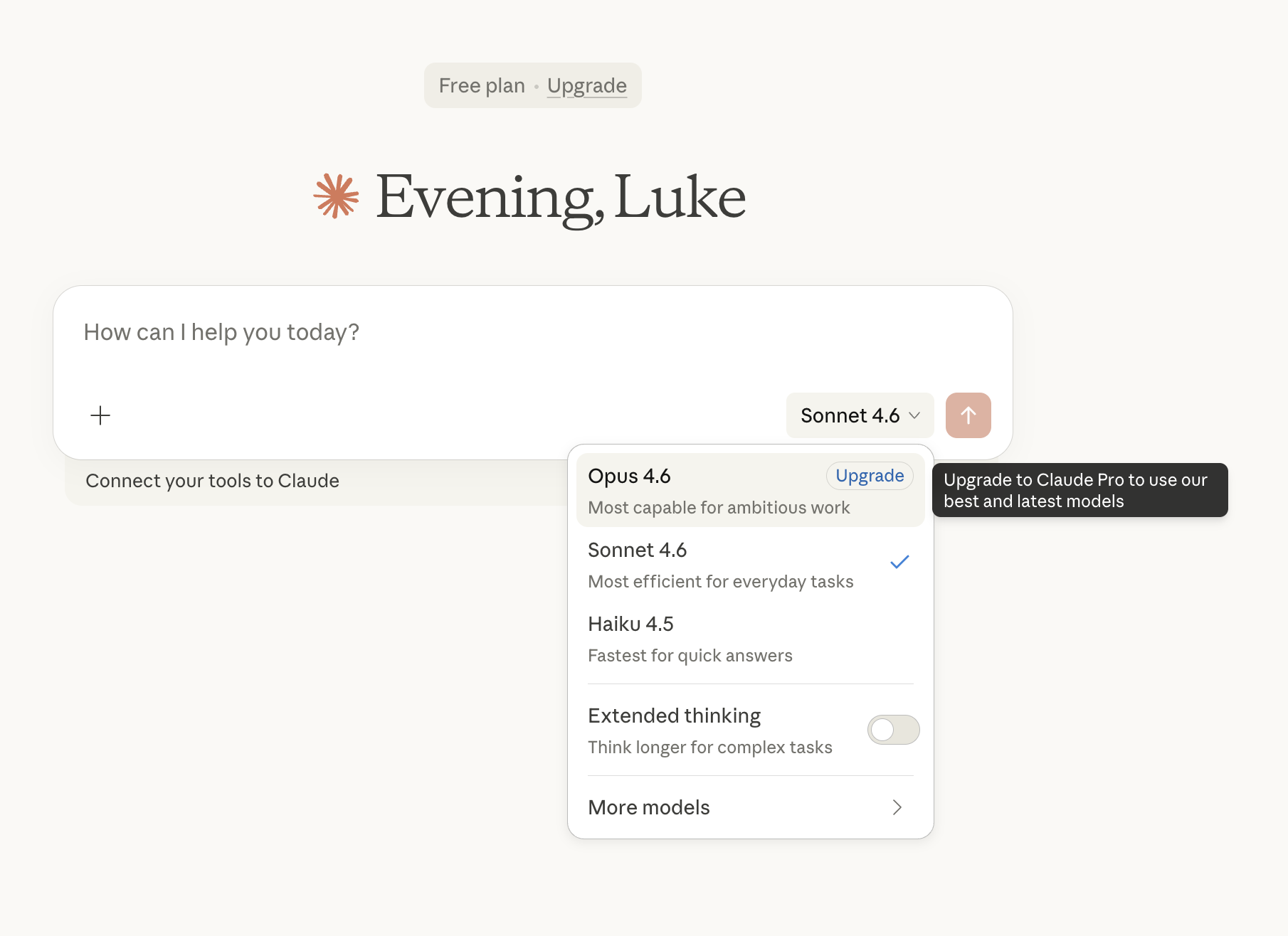
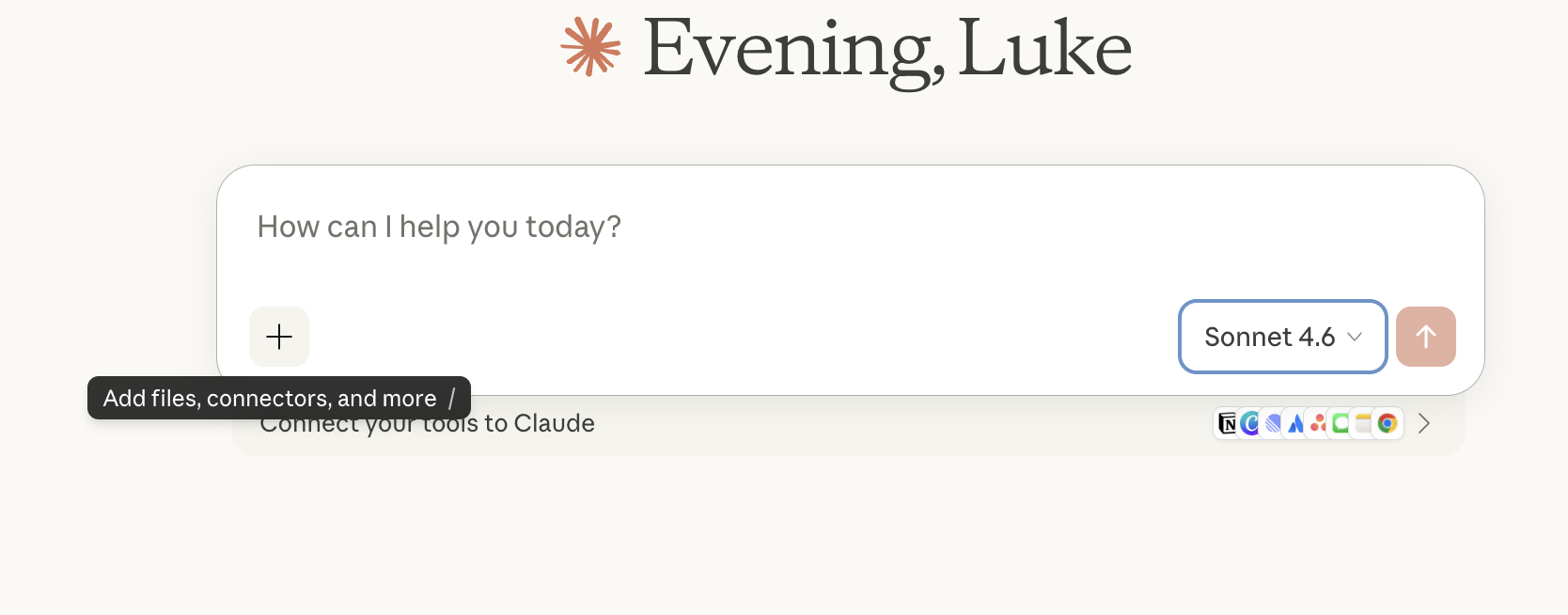
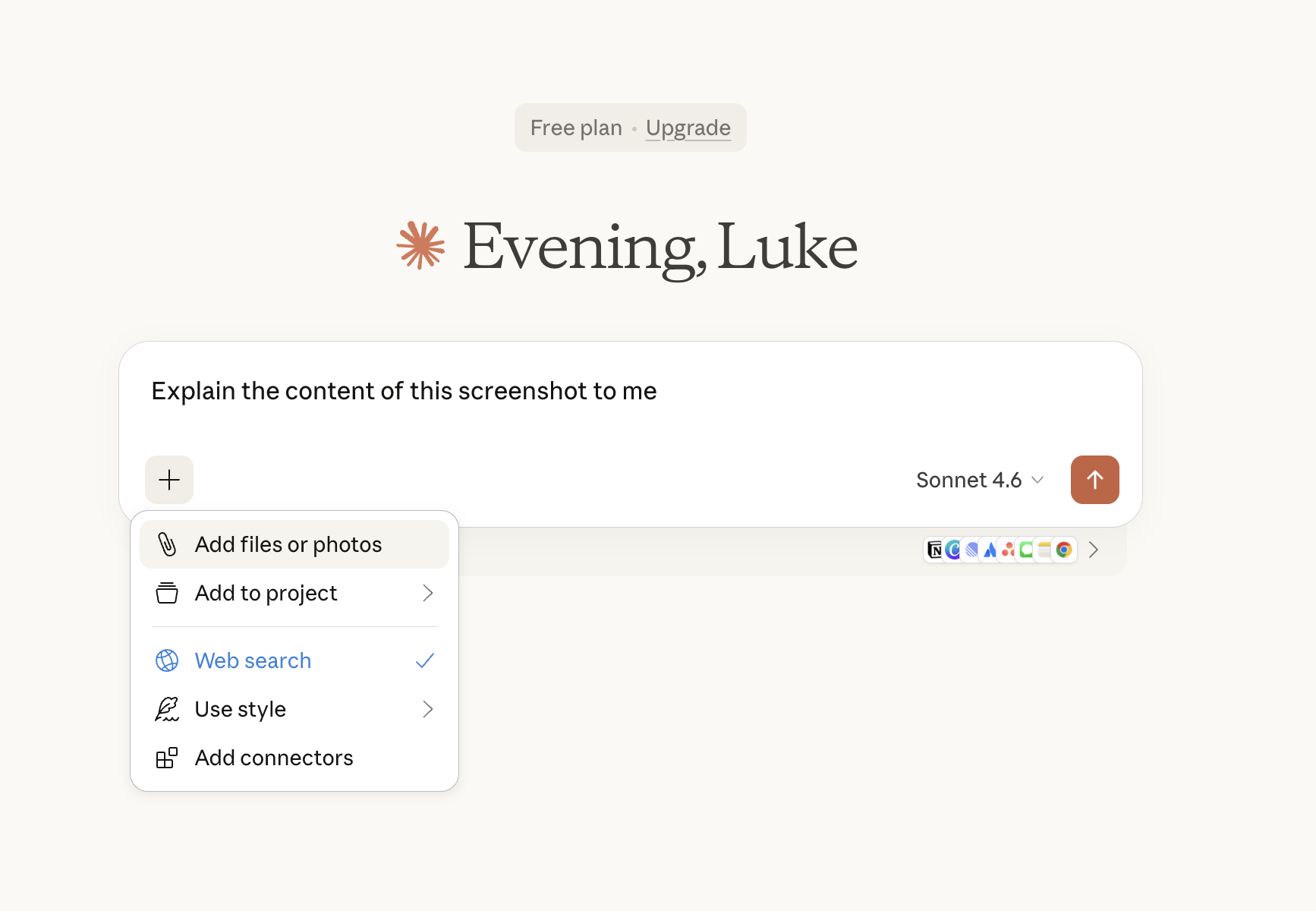
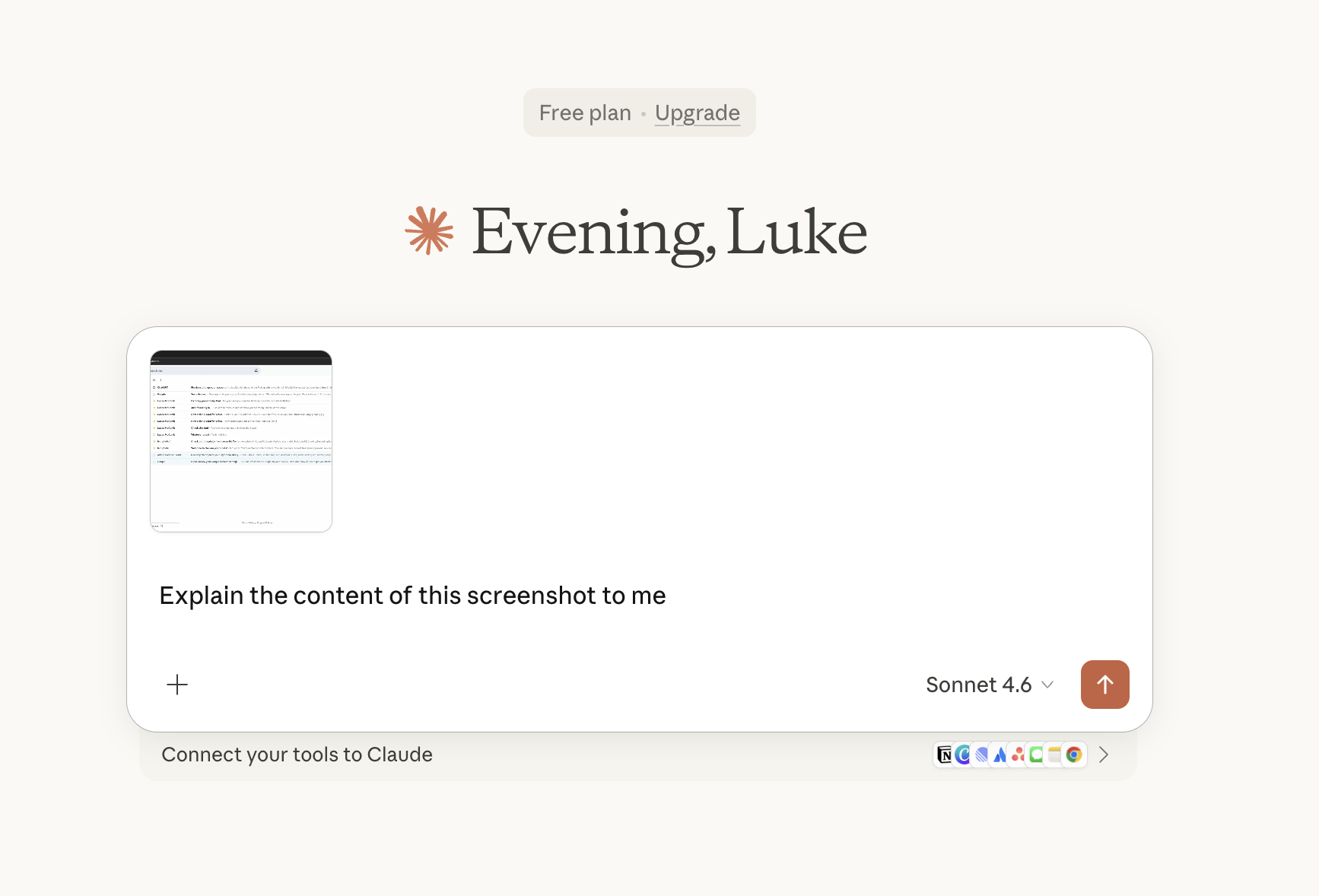
- Claude is multi-modal, meaning that it can consume and analyze images and files in addition to plain text. Use the "+" button on the bottom left of the prompt input to upload images or files in order to provide additional context with your prompt. Claude can summarize documents and analyze screenshots. Here's a guide for how to take screenshots.
- Ask Claude to save research to files so you can share the files with people and for yourself to easily reference later on. Save them to a "Claude docs" directory somewhere on your computer where you can easily find them.
Conclusion
You now have all recorded human knowledge just a prompt away. For more information on how to use Claude, I recommend checking out this course created by Anthropic, the creators of Claude: Claude 101. Claude is an incredibly powerful tool and is an excellent introduction to using AI for everyday problems.
Use it!
Questions, comments, concerns?
Reach out to me here: [email protected]
Thanks for reading and hopefully this is helpful!
Consider leaving a small donation to support the blog.
Comments